Extend QuikForms with custom plugins and secure your forms with Cloudflare Turnstile, honeypot protection, rate limiting, and XSS prevention
Ctrl+K
API Reference
This guide explains how to extend QuikForms with custom functionality using the Plugin Framework.
Plugin Framework Overview Professional
On Standard: plugins are not loaded. A registered plugin will not run and will not report an error, so if you are building against this API, confirm the org is on the Professional plan first.
The QuikForms Plugin Framework enables you to:
Create custom field types (sliders, star ratings, map pickers)
Execute business logic before/after form submission
Work with both low-code (Flow) and pro-code (Apex/JavaScript) approaches
How the pieces fit together
A plugin is up to three things, and most plugins are only one or two of them:
Piece
Where it runs
What it is for
JavaScript in a Static Resource
The visitor's browser, while they fill the form in
Drawing a custom field, reacting as someone types, stopping a submit before it leaves the page
Apex implementing one or more interfaces
Salesforce, inside the submission transaction
Anything the browser must not be trusted with: checking against your data, calling an external system, changing what gets saved
A Custom Metadata record
Nowhere. It is registration.
Telling QuikForms the other two exist. Without it nothing loads.
Registration is what makes it load
Deploying an Apex class or a Static Resource does not make it a plugin. QuikForms only looks at classes and resources named by a QuikForms_Plugin__mdt record with Is_Active__c checked. A plugin that runs nothing and logs nothing is usually missing that record, or has it unchecked.
In your org, every QuikForms type carries the quikforms namespace
QuikForms is a managed package, so the code you write in your own org refers to its types with the namespace prefix: quikforms.IQuikFormsPlugin, quikforms.QuikFormsValidationResult, quikforms.QuikFormsSubmissionContext, and so on. Every plugin class on this page is written that way. Leave the prefix off and the class does not compile.
The same applies to registration records. In Setup they are under Custom Metadata Types → QuikForms Plugin → Manage Records, where you see field labels. Deployed as metadata files, a record is named quikforms__QuikForms_Plugin.Address_Lookup.md-meta.xml and its fields are quikforms__Plugin_Type__c, quikforms__Is_Active__c, and so on. The tables on this page use the short field names for readability.
Which kind do you need?
The four recipes below are complete builds, not fragments. Find the row that matches what you are trying to do and start there.
I want an input QuikForms does not have: a slider, a map picker, a star rating
These are the four values of Plugin_Type__c, so the recipe you pick here is also the value you set when you register it.
What you are building is a new kind of input that an admin can then choose for any field in the field editor.
What you write is one JavaScript file and two Custom Metadata records, with no Apex at all.
The value your field produces is saved exactly like a normal field's, so it maps to a Salesforce field through the field's mapping the same way. The same file renders on Experience Cloud sites and on Salesforce Sites.
Write the field type
A field type is an object with up to five functions. Only render is required, but a field that stores a value needs getValue too, or nothing is submitted.
The container comes last.initialize receives the element your HTML was rendered into as its second argument, and getValue, setValue, and validate receive the same element as their last argument. Find your elements inside it. On an Experience Cloud site each field lives in a shadow root, where document.getElementById finds nothing, so a field type that looks itself up through document works only on Salesforce Sites.
(function () {
    'use strict';

    // Read the per-field JSON an admin entered in the field editor.
    // Always guard the parse: this is admin-entered text, and a
    // broken field should fall back to defaults rather than
    // throw and take the whole form's rendering down with it.
    function configFor(field) {
        var defaults = { max: 5 };
        try {
            return Object.assign(defaults, JSON.parse(field.pluginConfiguration || '{}'));
        } catch (e) {
            return defaults;
        }
    }

    // Everything is found INSIDE the container QuikForms hands you.
    function valueInput(container) {
        return container ? container.querySelector('.star-rating-value') : null;
    }

    var starRating = {
        // Return an HTML STRING. QuikForms inserts it for you.
        render: function (field, context) {
            var cfg = configFor(field);
            var buttons = '';
            for (var i = 1; i <= cfg.max; i++) {
                buttons += '<button type="button" data-star="' + i + '">*</button>';
            }
            // The hidden input carries the value. Use a class, not an id:
            // it is looked up inside the container, never on the page.
            return '<div class="star-rating">' + buttons +
                   '<input type="hidden" class="star-rating-value" value=""></div>';
        },

        // Called once the HTML above is in the page. Attach listeners here,
        // NOT in render: the elements do not exist yet during render.
        initialize: function (fieldId, container) {
            container.addEventListener('click', function (e) {
                var btn = e.target.closest('[data-star]');
                if (!btn) return;
                var input = valueInput(container);
                input.value = btn.getAttribute('data-star');
                // A bubbling change event is how QuikForms learns the
                // value changed. An Experience Cloud form reads the value
                // only when it hears one.
                input.dispatchEvent(new Event('change', { bubbles: true }));
            });
        },

        // How QuikForms reads the value. The container is the LAST argument.
        getValue: function (fieldId, container) {
            var input = valueInput(container);
            return input ? input.value : '';
        },

        // How QuikForms restores a value (session resume, or a
        // pre-populated value). The container is the LAST argument.
        setValue: function (fieldId, value, container) {
            var input = valueInput(container);
            if (input) input.value = value == null ? '' : String(value);
        },

        // Optional. Returns {isValid, errors}. Returning a bare string
        // does NOT fail validation: the caller reads .isValid.
        validate: function (fieldId, field, container) {
            if (field.isRequired && !starRating.getValue(fieldId, container)) {
                return { isValid: false, errors: ['Please choose a rating.'] };
            }
            return { isValid: true, errors: [] };
        }
    };

    // The entry point named by JS_Entry_Point__c. QuikForms calls this
    // and hands you the registry, on both renderers.
    window.initStarRating = function (QuikFormsPlugins) {
        QuikFormsPlugins.register('star-rating', {
            name: 'star-rating',
            version: '1.0.0',
            fieldTypes: { starRating: starRating }
        });
    };
})();
Deploy it as a Static Resource
Name the resource something stable, for example StarRatingPlugin. That name goes in JS_Static_Resource__c, and the global function you defined goes in JS_Entry_Point__c. The entry point must be a plain global function name: QuikForms looks it up on window, so a dotted name such as MyPlugins.init is never found.
Register the plugin
Create one QuikForms_Plugin__mdt record, here with the DeveloperName Star_Rating. Leave every Apex field blank, because there is no Apex.
Field
Value
Plugin_Type__c
FieldType
JS_Static_Resource__c
StarRatingPlugin
JS_Entry_Point__c
initStarRating
Is_Active__c
checked
Version__c
1.0.0
Tell the field editor it exists
A second record, QuikForms_Custom_Field_Type__mdt, is what puts your field type in the field editor's Plugin Field Type list. Without it the plugin loads but no admin can choose it.
Field
Value
Plugin__c
Star_Rating, the plugin record you just created
Field_Type_Name__c
starRating (must match the key in fieldTypes exactly, including case)
Display_Label__c
Star Rating
Category__c
Interactive
Default_Configuration__c
{"max":5}
Use it
Open a field in the field editor, from QuikField Manager or from the pencil on a field in the form builder, and go to the Options & Structure tab:
Plugin Field Type lists the field types of every active plugin, shown as the display label with its category, here Star Rating (Interactive). Choose it.
Plugin Configuration (JSON) is filled in from the type's Default_Configuration__c. Edit it for this field; it must be valid JSON before the field saves. This is what reaches your configFor() as field.pluginConfiguration.
The field keeps its own Field Type as a fallback: if the plugin is later deactivated, the field renders as that type instead. Field definitions are shared, so the change applies to every form that uses the field.
Read configuration from pluginConfiguration, not description
Both reach your code, and some older examples read field.description. Prefer field.pluginConfiguration: description is passed through localization first, so on a translated form it resolves per language and your JSON can come back as a translated string.
The Plugin Field Type list is shown on the Professional plan. To copy a working example, see Range Slider, which is this recipe with ticks and a value bubble.
What you are building is a rule that decides whether a value is acceptable, when a regex cannot express it.
What you write is Apex if the answer depends on your data or must be trustworthy, or JavaScript if it is a formatting rule and instant feedback matters.
Client-side and server-side do different jobs
Client-side validation is advice. It is fast and it can be bypassed by anyone who opens the browser console. Server-side validation is enforcement: it runs inside the submission and cannot be skipped. A rule that protects data integrity belongs in Apex, even when you also mirror it in JavaScript for faster feedback.
The Apex version
Implement the interfaces
Every plugin implements quikforms.IQuikFormsPlugin. A validator adds quikforms.IQuikFormsFieldValidator, which also requires getValidationMode().
A validator runs once for every submitted field, not once per form, so the first thing it does is decide whether the field in front of it is one it cares about. Without that check this example would demand a PO number in every field on every form.
global class PurchaseOrderValidator implements quikforms.IQuikFormsPlugin, quikforms.IQuikFormsFieldValidator {

    private Boolean ready = false;
    private Set<String> fieldIds = new Set<String>{ 'poNumber' };
    private Set<String> allowedPrefixes = new Set<String>{ 'PO', 'SO' };

    global quikforms.QuikFormsPluginInfo getPluginInfo() {
        quikforms.QuikFormsPluginInfo info = new quikforms.QuikFormsPluginInfo();
        info.name = 'Purchase Order Validator';
        info.version = '1.0.0';
        info.description = 'Checks that a PO number starts with an allowed prefix.';
        return info;
    }

    // Whatever an admin put in Configuration_Schema__c on the plugin
    // record arrives here, already parsed. Never assume a key is present.
    global void initialize(Map<String, Object> configuration) {
        if (configuration != null && configuration.get('fieldIds') instanceof List<Object>) {
            fieldIds.clear();
            for (Object o : (List<Object>) configuration.get('fieldIds')) {
                fieldIds.add(String.valueOf(o));
            }
        }
        if (configuration != null && configuration.get('allowedPrefixes') instanceof List<Object>) {
            allowedPrefixes.clear();
            for (Object o : (List<Object>) configuration.get('allowedPrefixes')) {
                allowedPrefixes.add(String.valueOf(o));
            }
        }
        ready = true;
    }

    // A plugin that is not ready is skipped.
    global Boolean isReady() {
        return ready;
    }

    // Required by the interface. QuikForms decides which method to call
    // from Validation_Mode__c on the plugin record, not from this value.
    global quikforms.QuikFormsValidationMode getValidationMode() {
        return quikforms.QuikFormsValidationMode.SYNC_ONLY;
    }

    global quikforms.QuikFormsValidationResult validateSync(quikforms.QuikFormsValidationContext ctx) {
        // Called for EVERY submitted field. Pass anything that is not ours.
        if (!fieldIds.contains(ctx.fieldId)) {
            return quikforms.QuikFormsValidationResult.success();
        }

        String value = ctx.fieldValue == null ? '' : String.valueOf(ctx.fieldValue);
        if (String.isBlank(value)) {
            // Let the field's Required setting own this case.
            return quikforms.QuikFormsValidationResult.success();
        }

        quikforms.QuikFormsValidationResult result = new quikforms.QuikFormsValidationResult();
        if (!allowedPrefixes.contains(value.left(2).toUpperCase())) {
            // Shown to the visitor on this field, so write it for them.
            result.addError('A purchase order number starts with PO or SO.');
        } else {
            // Optional: replace what gets saved. Key it by the FIELD ID.
            result.setTransformedValue(ctx.fieldId, value.toUpperCase());
        }
        return result;
    }

    // Called instead of validateSync when Validation_Mode__c is Async.
    // It is not asynchronous: it also runs at submit, and the visitor waits.
    global quikforms.QuikFormsValidationResult validateAsync(quikforms.QuikFormsValidationContext ctx) {
        return validateSync(ctx);
    }
}
Register it
Field
Value
Plugin_Type__c
Validator. Only records of this type run as validators.
What happens if the plugin itself throws: Fatal refuses the submission, Warn and Skippable let it through
Is_Active__c
checked
An objection appears on the field it names, in the visitor's form, like a failed Validation Regex. How server validation runs has the full contract.
The JavaScript version
For an instant rule, use the onValidate hook in a plugin's Static Resource, registered the same way as the field type in the first recipe. Any errors you return stop the submission and are shown to the visitor, with or without abort: true.
window.initMatchingEmails = function (QuikFormsPlugins) {
    QuikFormsPlugins.register('matching-emails', {
        name: 'matching-emails',
        hooks: {
            // fieldValues is keyed by field ID. Return synchronously: on a
            // Salesforce Sites form a returned Promise is not waited for.
            onValidate: function (context) {
                var a = context.fieldValues.email;
                var b = context.fieldValues.emailConfirm;
                if (a && b && a !== b) {
                    return { abort: true, errors: ['The two email addresses do not match.'] };
                }
            }
        }
    });
};
onValidate may also return modifiedValues, keyed by field ID. Those values are what gets submitted, while the visitor keeps seeing what they typed. That is how Input Masking saves a phone number without the formatting the visitor sees.
abort works on four hooks only
The four are onValidate, onBeforeSubmit, onFileUpload, and onBeforePageChange. Anywhere else there is nothing left to stop and the value is ignored. In particular onAfterSubmit cannot undo a record that already exists.
To copy a working example, see Smart Validation, which does cross-field rules on both sides.
What you are building is logic that runs as the form is submitted, to change what gets saved or to act once it is saved.
What you write is one Apex class, with no JavaScript.
There are two moments, both inside the submission and both after the submission has passed server validation:
Method
When
What it can do
onBeforeSubmit
Before the record is created
Change values, add values, or stop the submission entirely
onAfterSubmit
Once the record exists, before the response goes back to the visitor. Uploaded files and signatures are attached after this, so they are not there yet.
Read recordId and act on it. It cannot undo anything.
Handlers run for every record-creating form, single-object and multi-object, and for survey submissions, where the target is Survey__c.
Implement the handler
global class SourceStamper implements quikforms.IQuikFormsPlugin, quikforms.IQuikFormsSubmissionHandler {

    private Boolean ready = false;

    global quikforms.QuikFormsPluginInfo getPluginInfo() {
        quikforms.QuikFormsPluginInfo info = new quikforms.QuikFormsPluginInfo();
        info.name = 'Source Stamper';
        info.version = '1.0.0';
        info.supportedHooks.add('onBeforeSubmit');
        info.supportedHooks.add('onAfterSubmit');
        return info;
    }

    global void initialize(Map<String, Object> configuration) {
        ready = true;
    }

    global Boolean isReady() {
        return ready;
    }

    global quikforms.QuikFormsSubmissionResult onBeforeSubmit(quikforms.QuikFormsSubmissionContext context) {
        quikforms.QuikFormsSubmissionResult result = new quikforms.QuikFormsSubmissionResult();

        // modifyFieldValue changes what gets saved. The key is a QuikForms
        // FIELD ID ('leadSource' here is a field on this form), and QuikForms
        // writes the value to that field's mapped Salesforce field.
        result.modifyFieldValue('leadSource', 'Web Form');

        // To stop the submission instead:
        //   return quikforms.QuikFormsSubmissionResult.failure('We cannot accept this right now.');
        return result;
    }

    global quikforms.QuikFormsSubmissionResult onAfterSubmit(quikforms.QuikFormsSubmissionContext context) {
        // The record now exists. Do follow-up work here. A Task's WhatId
        // suits a Case or an Account; a Lead or Contact goes in WhoId.
        if (context.recordId != null && context.targetObjectApiName == 'Case') {
            insert new Task(
                WhatId = context.recordId,
                Subject = 'Review new submission',
                ActivityDate = Date.today().addDays(1)
            );
        }
        // Returning null is fine: it means "nothing to report".
        return null;
    }
}
Keys are field IDs on every path. A key that is not a field on the form is used as a Salesforce field API name instead, on single-object forms only, which lets you stamp a column the form does not show (for example result.modifyFieldValue('Origin', 'Web') on a Case form). On a multi-object form or a survey, a key that is not one of the form's fields is ignored.
Register it, and decide what happens when it fails
Field
Value
Plugin_Type__c
SubmissionHandler. Only records of this type run as submission handlers.
Apex_Class_Name__c
SourceStamper
Error_Behavior__c
Warn keeps the submission if your plugin throws in onBeforeSubmit; Fatal rejects it
Execution_Order__c
100
Is_Active__c
checked
Error_Behavior__c decides what a failure costs. A plugin that stamps a marketing source is usually Warn, since losing the stamp is better than losing the enquiry. A plugin that enforces a compliance rule is usually Fatal. An exception in onAfterSubmit never rejects the submission, whatever the setting, because the record already exists.
You are inside the visitor's transaction
Your queries and DML come out of the same governor limits as the record creation itself. Keep SOQL and DML out of loops, and push slow work into a Queueable. QuikForms skips a plugin when too little budget is left, but a single plugin that exhausts a limit on its own ends the transaction and the submission with it.
To copy a working example, see Submission Enrichment, which stamps metadata and creates follow-up Tasks.
What you are building is a form that talks to an external system, for example verifying an address or looking up a customer.
What you write is JavaScript for the interaction and Apex for the call.
Why this needs both halves
The browser must never hold your API key, and a public form runs in a browser you do not control. So the JavaScript never calls the third party. It asks your Apex to, and your Apex holds the credential in a Named Credential where the key is never exposed and never appears in a log.
Write the Apex that makes the call
Two things arrive separately, and mixing them up is the usual mistake:
initialize() receives the plugin's own configuration, the JSON in Configuration_Schema__c on the plugin record. It is where settings such as the Named Credential belong, because a visitor cannot change them.
What the browser sent arrives on request.body, as a JSON string. Treat it as untrusted input.
request.timeoutMs carries Timeout_Ms__c from the plugin record (10000 when blank). QuikForms does not apply it for you: pass it to setTimeout, as below.
global class AddressLookup implements quikforms.IQuikFormsPlugin, quikforms.IQuikFormsCalloutHandler {

    private String namedCredential = 'AddressApi';

    global quikforms.QuikFormsPluginInfo getPluginInfo() {
        quikforms.QuikFormsPluginInfo info = new quikforms.QuikFormsPluginInfo();
        info.name = 'Address Lookup';
        info.version = '1.0.0';
        // Informational. The gate is Supports_Callout__c on the plugin record.
        info.supportsCallouts = true;
        return info;
    }

    // The plugin record's Configuration_Schema__c, parsed. NOT what the
    // browser sent: that is on request.body.
    global void initialize(Map<String, Object> configuration) {
        if (configuration != null && configuration.get('namedCredential') != null) {
            namedCredential = String.valueOf(configuration.get('namedCredential'));
        }
    }

    global Boolean isReady() {
        return true;
    }

    global quikforms.QuikFormsCalloutResponse executeCallout(quikforms.QuikFormsCalloutRequest request) {
        // The params your JavaScript passed, as a JSON string.
        Map<String, Object> params = String.isBlank(request.body)
            ? new Map<String, Object>()
            : (Map<String, Object>) JSON.deserializeUntyped(request.body);
        Object rawPostcode = params.get('postcode');
        String postcode = rawPostcode == null ? '' : String.valueOf(rawPostcode);
        if (String.isBlank(postcode)) {
            return quikforms.QuikFormsCalloutResponse.failure('No postcode supplied.');
        }

        HttpRequest req = new HttpRequest();
        // callout:AddressApi keeps the key out of your code entirely.
        req.setEndpoint('callout:' + namedCredential + '/lookup?postcode=' +
                        EncodingUtil.urlEncode(postcode, 'UTF-8'));
        req.setMethod('GET');
        // Timeout_Ms__c from the plugin record. A form the visitor is
        // waiting on must not hang on someone else's slow server.
        req.setTimeout(request.timeoutMs);

        try {
            HttpResponse res = new Http().send(req);
            if (res.getStatusCode() == 200) {
                // body must be a JSON OBJECT, such as {"city":"..."}. It is
                // parsed and handed to your JavaScript. An array or plain
                // text fails the callout.
                return quikforms.QuikFormsCalloutResponse.success(200, res.getBody());
            }
            // errorMessage reaches the browser. Do not pass a raw
            // third-party error through to a visitor.
            return quikforms.QuikFormsCalloutResponse.failure('Address lookup is unavailable.');
        } catch (Exception e) {
            return quikforms.QuikFormsCalloutResponse.failure('Address lookup is unavailable.');
        }
    }
}
Call it from the browser
QuikFormsPlugins.callout() is the bridge. pluginName is the plugin record's DeveloperName, here Address_Lookup. It returns a Promise resolving to the parsed JSON your Apex put on response.body.
window.initAddressLookup = function (QuikFormsPlugins) {
    QuikFormsPlugins.register('address-lookup', {
        name: 'address-lookup',
        hooks: {
            // Fires when a field loses focus, which is the natural moment
            // to look something up.
            onFieldBlur: function (context) {
                if (context.fieldId !== 'postcode' || !context.value) return;

                // callout() takes ONE options object. It resolves to the
                // data your Apex returned, and REJECTS on failure.
                return QuikFormsPlugins.callout({
                    pluginName: 'Address_Lookup',
                    params: { postcode: context.value }
                }).then(function (data) {
                    if (!data || !data.city) return;
                    // On a Salesforce Sites form, modifiedValues fills these
                    // fields as though the visitor had typed them.
                    return { modifiedValues: { city: data.city, county: data.county } };
                }).catch(function () {
                    // A lookup failing must never block the form. Let them type it.
                    return undefined;
                });
            }
        }
    });
};
Both renderers apply the modifiedValues a field hook returns, so the filled-in fields update on Experience Cloud and Salesforce Sites alike.
Register both halves as one plugin
Create one QuikForms_Plugin__mdt record with the DeveloperName Address_Lookup:
Field
Value
Plugin_Type__c
Integration
Apex_Class_Name__c
AddressLookup
JS_Static_Resource__c
AddressLookupPlugin
JS_Entry_Point__c
initAddressLookup
Supports_Callout__c
checked. This is the gate: without it every callout is refused.
Timeout_Ms__c
5000, delivered to your Apex as request.timeoutMs
Configuration_Schema__c
{"namedCredential":"AddressApi"}
Is_Active__c
checked
Each callout counts toward the rate limit on both renderers. On a Salesforce Sites form it is also one request to the QuikForms REST endpoint, so it costs one API call; on an Experience Cloud site it costs none.
Let the guest user reach the credential
A public form runs as the site's guest user, which has no access to anything by default. The QuikForms Guest permission set covers only QuikForms' own Turnstile credential, so give the guest user access to your External Credential's principal in a permission set of your own, or every lookup fails with a permissions error that looks like a bug in your code. See External Credential Access.
To copy a working example, see External Verification, which is this recipe end to end.
Whichever recipe you followed, check these first when it does not work
Is the org on Professional? On Standard, plugins are not loaded at all and nothing is reported.
Is Is_Active__c checked? An inactive plugin is skipped silently.
Does the entry point name match exactly?JS_Entry_Point__c must be the name of a real global function.
For a field type, does Field_Type_Name__c match the key in fieldTypes? On a mismatch the field quietly renders as its ordinary Field Type, because no loaded plugin claims the name.
For Apex, does Plugin_Type__c match the interface? Validators run only from Validator records and submission handlers only from SubmissionHandler records.
The browser console reports plugin load and render failures by name. Troubleshooting has the full list.
Apex Interfaces
These are the package's global interfaces. In your own classes, refer to each one with the namespace, for example implements quikforms.IQuikFormsFieldValidator, and declare your class and its methods global, as the recipes above do. QuikForms creates your class with its no-argument constructor, so keep one.
IQuikFormsPlugin (Required)
This is the base interface every plugin must implement:
initialize() is called once, straight after QuikForms creates your class, with the plugin record's Configuration_Schema__c parsed into a map. Blank or malformed JSON arrives as an empty map. A plugin whose isReady() returns false is skipped.
IQuikFormsFieldValidator
A plugin implements this interface for custom validation logic:
Validation_Mode__c on the plugin record decides it. Sync (the default) and Both call validateSync(); Async calls validateAsync(). Either way the call happens once per submitted field, at submit, inside the submission, and the visitor waits for it. Nothing runs on the server when a field loses focus.
getValidationMode() must be implemented because the interface declares it, but QuikForms does not read what it returns. The QuikFormsValidationMode values are SYNC_ONLY, ASYNC_ONLY, SYNC_THEN_ASYNC, and ASYNC_ON_BLUR; return any of them.
How server validation runs
Every submission passes the same pipeline on the server, whichever renderer sent it: single-object forms, multi-object forms, and surveys. Nothing is written until it passes. In order:
Honeypot. A filled honeypot gets a normal-looking success and nothing further runs. See Honeypot Protection.
CAPTCHA runs when the form has it on, and a failure has the code CAPTCHA.
Blocking value messages: a selected option whose message is set to disable the submit button fails with BLOCKED.
Required fields and Validation Regex. A required field that is blank, or missing from the submission altogether, fails with REQUIRED. A value that does not match the field's Validation Regex fails with INVALID_VALUE. The regex is a search, like JavaScript's test(): \d{5} accepts abc12345. Anchor it with ^ and $ to match the whole value.
Validator plugins run once per submitted field. An objection fails with INVALID_VALUE on that field.
Flow onValidate hooks. A blocking Flow that says no fails with INVALID_VALUE and no field.
Stages 4 to 7 stop at the first stage that finds a problem, so a validator only sees values that already passed the required and regex checks. They all skip any field a dependent rule hides for the submitted values: the visitor never saw it, so it is never required and never validated. Validator plugins also skip custom HTML fields. When stages 4 to 7 refuse a submission, QuikForms publishes QuikForms_Validation_Failed__e.
After validation, Apex onBeforeSubmit handlers and Flow onBeforeSubmit hooks run, the record is created, and then come Apex onAfterSubmit handlers, Flow onAfterSubmit hooks, and QuikForms_Submission_Complete__e. A survey runs all of them too, with Survey__c as the target.
What a validator receives
Context property
What it holds
fieldId
The QuikForms field ID of the field being validated. Check it first.
fieldValue
The submitted value, as a String
fieldType
The field's QuikForms type, for example inputText or selectList
objectField
The API name of the Salesforce field it maps to
allFieldValues
Every submitted value, keyed by field ID, for cross-field rules
pluginConfiguration
The field's Plugin Configuration (JSON) from the field editor, parsed. Empty when blank or not valid JSON. The plugin's own settings arrive in initialize() instead.
formConfigId
The form's ID, the value in ?fc=
locale
The visitor's language, for writing the message in it
userAgent
The visitor's browser, only when Log User Browser Info is on in the form's Settings tab; otherwise null
ipAddress
The visitor's IP address, on Experience Cloud and Salesforce Sites forms alike. Null when it could not be determined.
What QuikForms does with the result
isValid = false (which addError() sets) refuses the submission. Each message in errorMessages becomes a fieldErrors entry with code INVALID_VALUE and your field ID, and the visitor sees it on that field. No messages means the visitor sees "This value is not valid."
transformedValue, keyed by the field ID, replaces the submitted value before anything else reads it. setTransformedValue(ctx.fieldId, newValue) builds it. It is applied only when the value passes.
warningMessages are not shown to the visitor.
Returning null means no objection.
If your validator throws, Error_Behavior__c decides: Fatal (the default) refuses the submission; the visitor sees "This submission could not be completed right now. Please try again later." and the exception itself goes to the log. Warn and Skippable let the value through. A Fatal failure is logged as PLUGIN-6002 in QuikForms Error Manager; Warn and Skippable failures are logged at lower severities, which the default Exception Log Level does not record.
How the refusal reaches the browser, and the other error codes, are in REST Endpoint.
IQuikFormsSubmissionHandler
A plugin implements this interface for logic before and after a submission:
Handlers run in Execution_Order__c order, and values one handler changes in onBeforeSubmit are visible to the next. A result with shouldContinue = false (set by abort() or failure()) stops the submission and shows your errorMessages to the visitor as a form-level error.
IQuikFormsCalloutHandler
A plugin implements this interface for server-side HTTP callouts:
global interface IQuikFormsCalloutHandler extends IQuikFormsPlugin {
    QuikFormsCalloutResponse executeCallout(QuikFormsCalloutRequest request);
}
QuikForms calls it only through QuikFormsPlugins.callout(), and only when the plugin record has Supports_Callout__c checked. QuikForms creates a fresh instance for each callout and calls initialize() with the record's Configuration_Schema__c before executeCallout().
JavaScript API
Registering a Plugin
QuikForms loads the plugin's Static Resource, then calls the global function named in JS_Entry_Point__c and passes it the registry. Register from there. The same file works on Experience Cloud sites and on Salesforce Sites.
The plugin record's Configuration_Schema__c reaches every hook as context.formData.pluginConfig.<DeveloperName>, for example context.formData.pluginConfig.Address_Lookup. The keys sit at the top level of that JSON, with no wrapper object. JSON that does not parse gives that one plugin {} and a console warning.
Reaching a field's elements
On an Experience Cloud site every field is rendered inside a shadow root, so document.getElementById and document.querySelector cannot see it. Use these registry methods, which work on both renderers:
Method
Returns
getFieldElement(fieldId)
The field's own input, select, or textarea, or null
getFieldContainer(fieldId)
An element beside the field where a plugin may add its own UI, such as a message or a badge
getFormArea()
An element for UI that belongs to the whole form, such as a progress bar
addStyles(id, css)
Nothing. Adds your CSS once per id, wherever the form's elements are rendered, including inside each field's shadow root
Available Hooks
Sixteen hooks cover every state transition a form goes through. Every one is declared and fires in both renderers, the Experience Cloud components and the Salesforce Sites runtime. Two differences remain:
modifiedValues from a form or field hook is written back to the form on both renderers: onFormLoad, onFieldChange, and onFieldBlur on Experience Cloud, and every form and field hook on Salesforce Sites. From onValidate and onBeforeSubmit it changes only what is submitted.
onValidate must return synchronously on Salesforce Sites. A returned Promise still runs, but its result is not waited for. The Experience Cloud renderer waits for it.
Every context carries formData and locale. The Experience Cloud renderer adds environment: 'ec', which is the way to tell the two apart when you need to.
Hook
When it fires
Context
Useful return
onFormLoad
Form data has loaded, before the visitor interacts
fieldValues, plus formData and locale
modifiedValues
onFieldRender
Once per field, after its DOM exists
fieldId, field, element (and input on Salesforce Sites), plus formData and locale. To reach the field on both renderers, use getFieldElement and getFieldContainer.
modifiedValues (Salesforce Sites)
onFieldChange
A field's value changed
fieldId, field, value, plus formData and locale
modifiedValues
onFieldBlur
A field lost focus
fieldId, field, value, plus formData and locale
modifiedValues
onFieldShow
A dependent rule revealed a field
fieldId, field, value, plus formData and locale
modifiedValues (Salesforce Sites)
onFieldHide
A dependent rule hid a field
fieldId, field, value, plus formData and locale
modifiedValues (Salesforce Sites)
onValidate
Participates in validation, and may stop it
fieldValues, plus formData and locale
abort, errors (either one stops the submit), modifiedValues (what is submitted)
onValidationFail
Validation finished and failed
errors, scope (form or page), pageIndex, plus formData and locale
informational
onBeforeSubmit
Last point before the submission is sent
fieldValues, plus formData and locale
abort, errors, modifiedValues
onAfterSubmit
Submission succeeded and uploads finished
fieldValues, referenceNumber (when the form shows one, otherwise null), plus formData and locale. The browser never receives the record's ID; an Apex handler does
warnings only
onSubmitError
The server rejected the submission
errors, fieldErrors, fieldValues, plus formData and locale
informational
onFileUpload
Before a file's bytes are sent
fieldId, field, file, fileName, fileSize, plus formData and locale
abort to refuse the file
onFormReset
QuikForms.reset() ran
plus formData and locale
informational
onPageRender
A page is shown, including the first
pageIndex, fromIndex, isFirstRender, isReviewPage, pages, plus formData and locale
informational
onBeforePageChange
Before navigating to another page
fromIndex, toIndex, pages, plus formData and locale
abort, errors
onPageChange
After navigating to another page
fromIndex, toIndex, pages, plus formData and locale
informational
What a hook may return. A handler can return {abort, errors, warnings, modifiedValues}, or nothing at all. abort only has an effect on the four hooks marked above; elsewhere it is ignored, because there is nothing left to stop. modifiedValues is a map of field ID to new value. From onValidate it changes only what is submitted, and the visitor keeps seeing what they typed. From onBeforeSubmit, and from form and field hooks on Salesforce Sites, it is applied as though the visitor had typed it, so dependent rules and value messages re-evaluate. warnings are never shown to the visitor.
Execution order
Apex plugins run in Execution_Order__c ascending. A plugin with no order set runs last, not first, and two plugins with the same order run in DeveloperName order so the sequence is stable rather than arbitrary.
For Apex onBeforeSubmit handlers, values a plugin changes are visible to the plugins after it: the chain accumulates, so ordering matters when two plugins touch the same field.
JavaScript hooks run in the order their plugins registered. An Experience Cloud site loads plugin files one at a time in Execution_Order__c order; a Salesforce Sites form loads them all at once, so there the order in which JavaScript plugins register is not fixed. Do not make one plugin's JavaScript depend on another's having run first.
Governor limits
A plugin runs inside the visitor's submission transaction and shares its Salesforce governor limits. QuikForms checks the remaining budget before starting each plugin and skips any that would run with too little left, reserving headroom for the record creation, analytics, and platform events that still have to happen. A skipped plugin is reported as a warning.
This is a backstop, not a guarantee. A Salesforce LimitException cannot be caught, so a single plugin that exhausts a limit on its own will still end the transaction and the submission with it. Keep queries and DML out of loops, and do heavy work asynchronously.
Resetting a form
QuikForms.reset() returns a form to its initial state: values cleared, errors cleared, the saved draft discarded, back to page one. It fires onFormReset when it finishes.
// From a plugin, or from any script on the page
window.QuikForms.reset();
On an Experience Cloud site the same method is exposed on the form component rather than on window.
Admins can switch on a Reset Form button that appears on the confirmation screen, which is useful for kiosks and repeated data entry. Its text is translatable like any other form label. There is deliberately no reset control beside the Submit button: a destructive action next to the one that commits the work is a well-known way to lose a visitor's answers.
A JavaScript hook that throws does not break the form. Each handler runs inside its own try/catch: an exception is logged, recorded as a warning, and the remaining plugins still run. Returning null is fine and simply means the plugin did nothing.
Making Server Callouts
A plugin's JavaScript cannot call an external system directly, and should not hold a credential. QuikFormsPlugins.callout() hands the request to your plugin's Apex executeCallout(), which makes the real call.
try {
    // Resolves to the parsed JSON your Apex put on response.body.
    const data = await QuikFormsPlugins.callout({
        pluginName: 'My_Plugin',              // required: the plugin record's DeveloperName
        params: { address: '123 Main St' }    // reaches Apex as JSON on request.body
    });
    console.log('Result:', data);
} catch (e) {
    // A failed callout REJECTS. There is no success flag to check.
    console.error('Lookup unavailable:', e.message);
}
Option
Meaning
pluginName
Required. The DeveloperName of the QuikForms_Plugin__mdt record, such as My_Plugin. The name you passed to register() does not match anything here.
params
An object. It is serialized to JSON and arrives in your Apex as request.body.
fc
Optional. The form's ID, used only to label an error log entry. On a Salesforce Sites form it is available as QuikForms.fcParam.
It rejects, it does not return a status
callout() throws when the request fails or when your Apex returns success = false, with your errorMessage as the error's message, and otherwise resolves to the data itself. Wrap it in try/catch or attach a .catch(). A lookup that fails should let the visitor carry on typing, not block the form. Your Apex's response.body must be a JSON object; anything else fails the callout.
When QuikForms refuses a callout before your Apex runs (no active plugin by that name, Supports_Callout__c unchecked, a missing or invalid class, or a plan without plugins), the error's message is always "The request could not be completed. Please try again." The browser is never told which check failed. The reason is logged as PLUGIN-6001 in QuikForms Error Manager; an unknown plugin name is logged at Medium severity, so raise the Exception Log Level to Warning while you set a plugin up.
Field Type Interface
The contract is the same on both renderers. The element your HTML was rendered into is passed to initialize and, as the last argument, to getValue, setValue, and validate. Look your elements up inside it: on an Experience Cloud site the field is in a shadow root that document cannot see into.
fieldTypes: {
    fieldTypeName: {   // must match Field_Type_Name__c exactly
        // Required: return the field's HTML as a string.
        // context holds locale and placeholder (and formData on Salesforce Sites).
        render: function (field, context) {
            return '<input type="text" class="my-input" />';
        },

        // Optional: called once the HTML is in the page.
        initialize: function (fieldId, container) {
            // Attach listeners here. Dispatch a bubbling 'change' or 'input'
            // event when the value changes so QuikForms re-reads it.
        },

        // Required for a field that stores a value.
        getValue: function (fieldId, container) {
            return container.querySelector('.my-input').value;
        },

        // Optional: restore a value (session resume, a pre-populated value).
        setValue: function (fieldId, value, container) {
            container.querySelector('.my-input').value = value == null ? '' : value;
        },

        // Optional: return {isValid, errors}.
        validate: function (fieldId, field, container) {
            return { isValid: true, errors: [] };
        }
    }
}
The field object carries the field's id, label, isRequired, and pluginConfiguration, the JSON from the field editor's Plugin Configuration (JSON) box, as a string.
Data Classes
These classes are all global, in the quikforms namespace. Collection properties start as empty lists or maps rather than null, except transformedValue. The methods that change a result return the result, so calls can be chained.
QuikFormsPluginInfo
global class QuikFormsPluginInfo {
    global String name;
    global String version;
    global String description;
    global Boolean supportsCallouts;     // informational; Supports_Callout__c is the gate
    global List<String> supportedHooks;   // defaults to an empty list
}
QuikFormsValidationContext
global class QuikFormsValidationContext {
    global String formConfigId;                     // the form's ID, as in ?fc=
    global String fieldId;                          // the field being validated
    global String fieldType;
    global String objectField;                      // the Salesforce field it maps to
    global Object fieldValue;                       // the submitted value, a String
    global Map<String, Object> allFieldValues;    // keyed by field ID
    global Map<String, Object> pluginConfiguration; // the FIELD's Plugin Configuration
    global String locale;
    global String userAgent;                        // only when the form logs browser info
    global String ipAddress;                        // the visitor's address, on either renderer
}
QuikFormsValidationResult
global class QuikFormsValidationResult {
    global Boolean isValid;                         // starts true
    global List<String> errorMessages;             // shown to the visitor on the field
    global List<String> warningMessages;           // not shown to the visitor
    global Map<String, Object> transformedValue;   // keyed by FIELD ID; replaces the value
    global Boolean isPending;                       // not used by QuikForms
    global String pendingToken;                     // not used by QuikForms

    global QuikFormsValidationResult addError(String message);    // also sets isValid = false
    global QuikFormsValidationResult addWarning(String message);
    global QuikFormsValidationResult setTransformedValue(String key, Object value);
    global static QuikFormsValidationResult success();
    global static QuikFormsValidationResult failure(String errorMessage);
}
QuikFormsSubmissionContext
global class QuikFormsSubmissionContext {
    global String formConfigId;                     // the form's ID, as in ?fc=
    global String formDefinitionId;                 // set on multi-object forms
    global String targetObjectApiName;              // single-object: the form's object; survey: Survey__c; multi-object: null
    global Map<String, Object> fieldValues;       // keyed by field ID
    global Map<String, Object> pluginConfiguration; // not set; your settings arrive in initialize()
    global Id recordId;                             // onAfterSubmit only (the parent on a multi-object form)
    global String referenceNumber;                  // onAfterSubmit only, when the form shows a reference number
    global String locale;
    global String captchaToken;                     // not set
    global String userAgent;                        // see below
    global String ipAddress;                        // the visitor's address, on either renderer
    global String referrer;                         // the form page that sent it, on either renderer
    global Map<String, Object> metadata;          // passed from one handler to the next
}
ipAddress and referrer are filled on both renderers: from the request on a Salesforce Sites form, and on an Experience Cloud site from the signed visitor ticket the form sends with the submission (see How Rate Limiting Works). The referrer is normally the address of the form page itself. userAgent is the browser's own header on Salesforce Sites; on either renderer, when the form's Log User Browser Info is on, it is the browser the form reported. On an Experience Cloud site with that setting off, it is null. On a multi-object form, metadata also carries isMultiObject, plus createdRecordIds in onAfterSubmit. On a survey, onBeforeSubmit gets surveyId in metadata, and onAfterSubmit gets the survey record as recordId.
QuikFormsSubmissionResult
global class QuikFormsSubmissionResult {
    global Boolean success;                         // starts true
    global Boolean shouldContinue;                  // starts true; false stops the submission
    global List<String> errorMessages;
    global List<String> warningMessages;
    global Map<String, Object> modifiedFieldValues; // keyed by FIELD ID
    global Map<String, Object> metadata;

    global QuikFormsSubmissionResult addError(String message);   // also sets success = false
    global QuikFormsSubmissionResult addWarning(String message);
    global QuikFormsSubmissionResult abort();                    // sets shouldContinue = false
    global QuikFormsSubmissionResult modifyFieldValue(String fieldId, Object value);
    global QuikFormsSubmissionResult setMetadata(String key, Object value);
    global static QuikFormsSubmissionResult success();
    global static QuikFormsSubmissionResult failure(String errorMessage); // addError + abort
}
From onBeforeSubmit, addError() stops the submission and the visitor sees your message; abort() stops it without one. Use addWarning() for a note that should not stop anything.
QuikFormsCalloutRequest
global class QuikFormsCalloutRequest {
    global String endpoint;                // not set by QuikForms
    global String method;                  // 'GET' unless you change it
    global Map<String, String> headers;
    global String body;                    // the browser's params, as a JSON string
    global Integer timeoutMs;              // Timeout_Ms__c from the plugin record; 10000 when blank
    global String namedCredential;         // not set by QuikForms
}
QuikFormsCalloutResponse
global class QuikFormsCalloutResponse {
    global Boolean success;                // starts false
    global Integer statusCode;
    global String body;                    // must be a JSON object; parsed for the browser
    global Map<String, String> headers;
    global String errorMessage;            // becomes the browser's rejection message

    global Object getJsonBody();
    global static QuikFormsCalloutResponse success(Integer statusCode, String body);
    global static QuikFormsCalloutResponse failure(String errorMessage);
}
Custom Metadata Configuration
Create these records in Setup under Custom Metadata Types, or deploy them as metadata files named quikforms__QuikForms_Plugin.<DeveloperName>.md-meta.xml with quikforms__ on every field name.
QuikForms_Plugin__mdt
This type registers a plugin, and Setup shows it as QuikForms Plugin. The record's DeveloperName is the plugin's name everywhere else: in callout(), in formData.pluginConfig, and in error logs.
Field
Label in Setup
Description
Plugin_Type__c
Plugin Type
FieldType, Validator, SubmissionHandler, or Integration. Only Validator records run as validators and only SubmissionHandler records run as submission handlers.
Apex_Class_Name__c
Apex Class Name
The Apex class implementing the plugin interface. For a class in another package, namespace.ClassName.
JS_Static_Resource__c
JS Static Resource
Name of the JavaScript Static Resource
JS_Entry_Point__c
JS Entry Point
Name of the global function QuikForms calls with the registry. A plain name, with no dots.
Is_Active__c
Is Active
Whether the plugin is enabled. Checked by default.
Execution_Order__c
Execution Order
Order in which plugins run, lowest first. Defaults to 100; a blank value runs last.
Error_Behavior__c
Error Behavior
What happens when the plugin's Apex throws: Fatal (default) refuses the submission, Warn and Skippable let it continue
Validation_Mode__c
Validation Mode
For a validator: Sync (default) and Both call validateSync(), Async calls validateAsync(). Both run at submit.
Supports_Callout__c
Supports Callout
Must be checked for callout() to reach the plugin's Apex. Unchecked, every callout is refused.
Timeout_Ms__c
Timeout (ms)
Delivered to executeCallout() as request.timeoutMs. Defaults to 10000. Your Apex applies it.
Configuration_Schema__c
Configuration Schema
The plugin's settings, as JSON with the keys at the top level. Apex receives it parsed in initialize(); JavaScript reads it as context.formData.pluginConfig.<DeveloperName>.
Version__c, Description__c, Icon__c
Version, Description, Icon
Descriptive only
QuikForms_Custom_Field_Type__mdt
This type offers a plugin's field type in the field editor's Plugin Field Type list, and Setup shows it as QuikForms Custom Field Type.
Field
Label in Setup
Description
Plugin__c
Plugin
The QuikForms_Plugin__mdt record. The type is offered only while that plugin is active.
Field_Type_Name__c
Field Type Name
Must match the key in the plugin's fieldTypes exactly, for example rangeSlider. This is the value stored on a field that uses the type.
Display_Label__c
Display Label
The name shown in the Plugin Field Type list
Category__c
Category
Shown after the label, in parentheses
Default_Configuration__c
Default Configuration
JSON that fills Plugin Configuration (JSON) when an admin chooses the type
Icon__c
Icon
Optional SLDS icon name, for example utility:slider
QuikForms_Plugin_Hook__mdt (QuikForms Plugin Hook) can record which hooks a plugin uses, and its Hook Name accepts all sixteen. It is optional: hooks run because your JavaScript passes them to register().
Flow Integration (Low-Code) Professional
On Standard: Flow hooks are not run.
For admins who prefer Flow over Apex, an autolaunched Flow can take part in a submission at three points:
Hook
When it runs
What it can do
onValidate
During server validation, after validator plugins. Runs for surveys too.
Refuse the submission. The visitor sees errorMessage as a form-level error.
onBeforeSubmit
After the Apex onBeforeSubmit handlers, before the record is created. Record-creating forms, single-object and multi-object.
Refuse the submission, or change values through modifiedValuesJson
onAfterSubmit
After the record is created, with recordId set. Record-creating forms only.
Follow-up work. It cannot stop anything.
Step 1: Create a Flow
Create an Autolaunched Flow with these variables marked Available for input:
hookName (Text): onValidate, onBeforeSubmit, or onAfterSubmit
formConfigId (Text): the form's ID, the value in ?fc=
recordId (Text): the created record's ID, in onAfterSubmit only
fieldValuesJson (Text): the submitted values as JSON, keyed by field ID
locale (Text): the visitor's language
Then add these, marked Available for output:
shouldContinue (Boolean): set to false to refuse the submission
errorMessage (Text): what the visitor sees when you refuse it
modifiedValuesJson (Text): a JSON object of new values, keyed by field ID, applied in onBeforeSubmit. A key that is not a field on the form is used as a Salesforce field API name on single-object forms.
Step 2: Register the Flow Hook
Create a QuikForms_Flow_Hook__mdt record (QuikForms Flow Hook in Setup):
Field
Value
Hook_Name__c
onValidate, onBeforeSubmit, or onAfterSubmit
Flow_API_Name__c
The Flow's API name, for example MyQuikFormsHook
Form_Config_Filter__c
Empty for all forms, or comma-separated form IDs (the values in ?fc=)
Is_Active__c
true
Is_Blocking__c
true for a Flow that may refuse a submission. A non-blocking Flow's shouldContinue = false is ignored.
Execution_Order__c
10
Handle faults inside a blocking Flow
If a blocking Flow fails, the submission is refused and the visitor sees "The request could not be completed. Please try again." The fault message goes to QuikForms Error Manager (code APEX-3003), never to the visitor. Add fault paths so the Flow sets shouldContinue and errorMessage itself. A failing non-blocking Flow is skipped.
Platform Events (Async Integration) Professional
On Standard: these events are not published, so a subscriber will receive nothing.
Subscribe to these Platform Events for decoupled async processing, with a platform-event-triggered Flow or an Apex trigger:
QuikForms_Submission_Complete__e
Published once a record-creating form's record has been saved, including chat forms that create a record and multi-object forms (for the parent record). It is delivered after the submission commits. Survey submissions do not publish it.
Field
Description
Form_Config_Id__c
The form's ID, the value in ?fc=
Record_Id__c
The created record's ID (the parent record on a multi-object form)
Object_API_Name__c
That record's object API name
Field_Values_JSON__c
Submitted values as JSON, keyed by field ID
Submission_Timestamp__c
When the form was submitted
User_IP__c
Submitter's IP address, on either renderer, when the form's Log User Browser Info setting is on; blank when it is off or the address could not be determined
Locale__c
The visitor's language
QuikForms_Validation_Failed__e
Published when server validation refuses a submission, on either renderer and for surveys too: one event per field that failed, all in a single publish. It covers what a visitor got wrong (required, invalid, and blocked fields). Errors with no field, such as a failed CAPTCHA or a Flow onValidate refusal, publish nothing. It is published immediately, so it arrives even though the submission itself was refused.
Field
Description
Form_Config_Id__c
The form's ID, the value in ?fc=
Field_Id__c
The field that failed
Validation_Errors_JSON__c
A JSON array of that field's error messages, as the visitor saw them
Submitted_Value__c
The value that failed
User_IP__c
Submitter's IP address, on either renderer, when the form's Log User Browser Info setting is on; blank when it is off or the address could not be determined
Timestamp__c
When the submission was refused
These events carry what the visitor typed.Submitted_Value__c and Field_Values_JSON__c hold submitted values, which can be personal data. Treat anything that stores or forwards them accordingly.
REST Endpoint
A form on a Salesforce Site talks to one Apex REST endpoint, which runs as the site's guest user:
On a site with a path prefix, the prefix comes first: https://<domain>/<prefix>/services/apexrest/quikforms/qf. A form on an Experience Cloud site does not use this endpoint. It calls the same server logic through Lightning, and gets the same result shape.
Loading a form
Send a GET with ?fc=<form ID>&locale=<language>, plus st=<survey token> for a survey link or pt=<preview token> for a preview. It returns the form's definition as JSON.
QuikForms answers with HTTP 200 even when it refuses a submission. The body is a JSON string whose content is the result object, so parse it twice. Check success, never the HTTP status.
{
  "success": false,
  "errorMessages": ["\"Email\" is not a valid value."],
  "fieldErrors": [
    { "fieldId": "email", "code": "INVALID_VALUE", "message": "\"Email\" is not a valid value." }
  ],
  "confirmationMessage": null
}
On success, confirmationMessage is set, and referenceNumber when the form shows one. The response never carries the created record's ID: Salesforce's guidance for guest users is not to return it, so a form that needs to give the visitor something to quote turns on Show Reference Number. On failure, every error is in errorMessages, and the ones the server can attribute are also in fieldErrors with a stable code. Messages come from the form's own error labels, in the visitor's language.
Code
Meaning
fieldId
REQUIRED
A required field was blank or missing
The field
INVALID_VALUE
The Validation Regex, a validator plugin, or a Flow onValidate hook refused the value
The field; null for a Flow
BLOCKED
A selected option carries a value message that blocks submission
The field
CAPTCHA
The CAPTCHA token was missing or failed verification
null
CONFIG
The form is misconfigured. The visitor sees the form's generic error; the cause is logged for you in QuikForms Error Manager.
null
Some refusals come back in errorMessages alone, with no fieldErrors: the rate limit, a request from a referrer not in Valid Referrers, and a submission handler or Flow that stopped the submission.
API request cost
Every call to this endpoint counts against your org's daily API request limit, which it shares with every other integration in the org. Calls made through Lightning do not.
Where the form runs
API requests per completed form
Experience Cloud site
0
Salesforce Site
About 3: loading the form, recording the view, and submitting. 2 with Analytics Enabled off. Each file upload request and each plugin callout adds one, and a large file is sent in 3 MB pieces, one request each.
For forms with high volume, an Experience Cloud site avoids the cost entirely.
Preview tokens
The builder's Preview button opens the form with a pt parameter holding a signed preview token, so you can see a draft on the real site before publishing it. It works on Experience Cloud sites and Salesforce Sites.
A token is valid for 8 hours, and anyone holding the link can open the preview until then. Share it as you would the draft itself.
A token is signed (HMAC-SHA256), not encrypted. Anyone holding the link can read what it contains, the form and whether it is a draft, but cannot change it or forge a new one. The signing key is kept in a protected custom setting that only QuikForms' own code can read.
Tokens do not need Platform Cache.
An expired or invalid token is ignored, and the visitor sees the published version, as with an ordinary link.
Security Considerations
Important Security Guidelines
Apex Class Validation: QuikForms only creates a plugin class that implements IQuikFormsPlugin and passes its class-name checks. See Plugin Class Validation.
Callout Security: Use Named Credentials for external API calls. Never store credentials in code or configuration.
XSS Prevention: Always escape user input when rendering HTML in JavaScript plugins. A plugin's markup is inserted as you wrote it, without sanitisation.
Input Validation: Validate on the server anything that matters. Browser checks are for convenience.
Working Examples
Six complete plugins ship with source, a README, and a downloadable zip file. To install one, deploy every folder in its zip to your org. Each one is a working reference for a different part of this API:
Range Slider registers a custom field type, the closest analogue to building your own input.
Input Masking formats values as they are typed and submits them without the formatting, using client hooks only.
Smart Validation adds conditional and cross-field rules, client and server.
External Verification calls an outside service from a field blur.
Submission Enrichment is an Apex submission handler that adds fields before the record is created.
Progress Indicator tracks completion and follows the visitor across pages.
Signature capture is built in, not a plugin. Use the inputSignature field type. It renders a canvas signature pad in both renderers and stores the result as a file on the created record, so no plugin is needed.
Troubleshooting
Plugin failures are logged in QuikForms Error Manager: PLUGIN-6001 when a plugin cannot be loaded, PLUGIN-6002 when it fails while running. The browser console reports JavaScript load and render failures by plugin name.
Plugin Not Loading
Check the org is on the Professional plan. On Standard, plugins are not loaded.
Check Is_Active__c is checked on the plugin record
Verify the Static Resource name matches JS_Static_Resource__c
Ensure JS_Entry_Point__c is the exact name of a global function, with no dots
Check the browser console for JavaScript errors
For Apex, check the class compiles with the quikforms. prefix on every QuikForms type, and that its name is not refused by Plugin Class Validation
Callout Failing
Verify Supports_Callout__c is checked on the plugin record
Check pluginName is the record's DeveloperName, not the name passed to register()
Check the Apex class implements quikforms.IQuikFormsCalloutHandler
Check your Apex returns a JSON object in response.body
Check the site's guest user can use your External Credential. It fails on the live site but works in preview when it cannot.
Look for PLUGIN-6002 in QuikForms Error Manager
Validation Not Running
Check Plugin_Type__c is Validator: validator classes on records of any other type are never called
Check the class implements quikforms.IQuikFormsFieldValidator and isReady() returns true
Check the field was submitted and is not hidden by a dependent rule. Validators run once per submitted field and skip hidden and custom HTML fields.
Remember the pipeline stops at the first failing stage: while a required field is blank or a regex fails, validators do not run
For a JavaScript validate function, check it returns {isValid, errors}, and that the field's Plugin Field Type is set in the field editor
QuikForms protects forms and submissions at several layers. This section covers authentication, authorization, rate limiting, and protection against common web vulnerabilities.
Security Best Practice: Always follow the principle of least privilege when configuring guest user permissions. Grant only the minimum access required for forms to function.
Security Overview
QuikForms security is built on multiple layers of defense. Most of them apply on both renderers; a few are checks on the Salesforce Sites request path only, as the table shows.
Security Layer
Purpose
Implementation
Guest User Permissions
Control what a site's visitors can reach
The QuikForms Guest permission set plus create access to the objects and fields your forms write, both granted from Setup Assistant → Guest User Permissions
Cloudflare Turnstile
Prevent bot submissions and abuse
Privacy-friendly CAPTCHA, verified on the server through a Named Credential. Both renderers.
Honeypot Protection
Catch automated bots transparently
Hidden field technique, on by default, checked on the server. Both renderers.
Rate Limiting
Slow down repeated submissions from one source
Per-IP throttle using Platform Cache. Both renderers.
Referrer Validation
Refuse requests that do not come from your own pages
Optional allowlist of the domains your form pages are served from. Both renderers.
Server-side Validation
Enforce required fields, patterns, and your own rules
One validation pipeline for every submission. Both renderers.
XSS Prevention
Protect against cross-site scripting
Output escaping, and sanitisation of admin-authored HTML
Plugin Security
Control which classes run as plugins
Class-name checks and interface validation before a plugin is created
Defense in Depth: QuikForms uses multiple overlapping security controls to ensure that if one layer fails, others continue to protect your data.
Turnstile & Honeypot Configuration
QuikForms uses a dual-layer approach to bot protection: Cloudflare Turnstile for CAPTCHA verification and honeypot fields for transparent bot detection.
Bot Protection Overview
QuikForms provides two complementary layers of bot protection:
Protection Layer
How It Works
User Impact
Cloudflare Turnstile
Privacy-friendly CAPTCHA that validates users non-intrusively. Runs silently in most cases; only presents a challenge when suspicious activity is detected.
Minimal: no "I'm not a robot" checkbox in most cases
Honeypot
Hidden form field invisible to real users. A submission that fills it in gets a normal-looking thank-you, and nothing is saved.
Zero: completely transparent to users
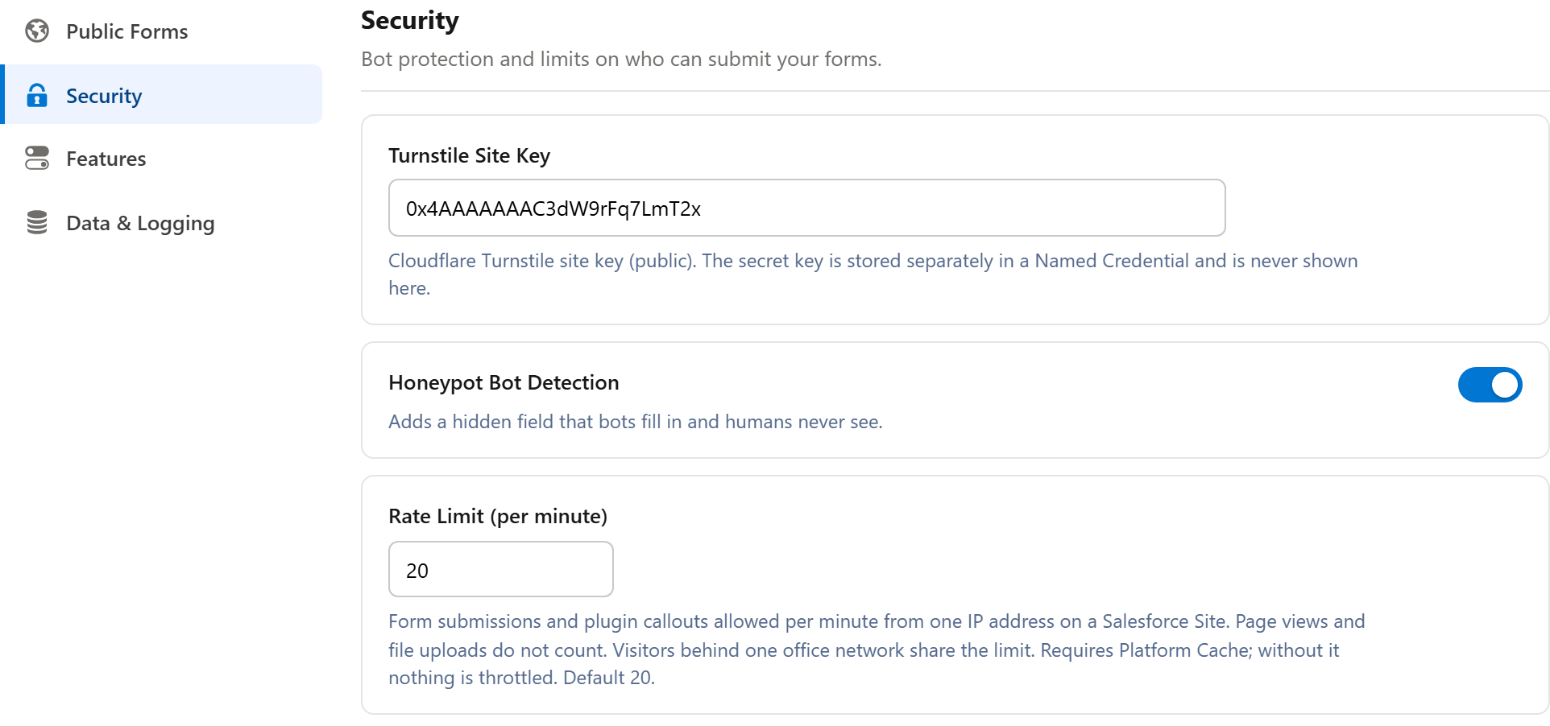
On by default, and independent of CAPTCHA: Honeypot protection applies to every form whether or not CAPTCHA is enabled, so it is a baseline layer against simple bots. It is switched on and off org-wide with Honeypot Bot Detection under Setup Assistant → Settings → Security, so confirm that setting is on if you are relying on it.
Getting Turnstile Keys
Before configuring QuikForms, you'll need to obtain API keys from Cloudflare.
Widget Mode: Select Managed (recommended). Cloudflare will automatically choose the best challenge type
Click Create
Step 3: Save Your Keys
After creation, Cloudflare provides two keys:
Key Type
Usage
Visibility
Site Key
Public key used to render the Turnstile widget (client-side)
Public, visible in page source
Secret Key
Private key used for server-side token verification
Private, stored in a Named Credential
Security: Never expose your Secret Key in client-side code or version control. Always store it securely in Salesforce Named Credentials.
Copy both keys. You'll need them in the next steps.
Save Your Keys in QuikForms
QuikForms ships the Turnstile Named Credential and Turnstile_External_Credential already configured, so there is nothing to create. You only add your two keys:
In QuikForms, open Setup Assistant → Bot Protection Setup.
Paste your Site Key and Secret Key, then click Save.
QuikForms stores the secret key encrypted in the Turnstile External Credential, saves the site key to its settings, and then asks Cloudflare whether the secret works. Cloudflare accepted the secret key means you are done.
Not ready to create a Cloudflare account? Click Use Cloudflare test keys. Forms work straight away, but the test keys let every visitor through, so they block no bots. Replace them with your real keys before going live. The button is only offered while no secret key is stored, so it can never overwrite your real one.
Site visitors need access too. Verification runs as your site's guest user. Setup Assistant → Guest User Permissions → Grant access gives it the QuikForms_Guest permission set, which includes the Turnstile credential. Without it, every form with CAPTCHA turned on rejects its submissions.
Doing it by hand instead: in Setup, open Named Credentials → External Credentials → Turnstile External Credential, edit the existing Default principal, set Username to any value and Password to your secret key, and save.
To verify a visitor's CAPTCHA token, the server sends it to Cloudflare's verification service at challenges.cloudflare.com through the packaged Turnstile Named Credential, together with your secret key. That is the only call the server makes for bot protection; the widget itself runs in the visitor's browser and talks to Cloudflare directly. A verification that cannot complete, for example because Cloudflare does not answer within 5 seconds, refuses the submission and is logged as APEX-9998 in QuikForms Error Manager.
Changing the Site Key Later
Open Setup Assistant → Bot Protection Setup again and save the new key, or edit Turnstile Site Key under Setup Assistant → Settings → Security. Either way the change takes a few seconds to apply, because Salesforce deploys settings in the background.
Per-Form CAPTCHA Control
You can enable or disable Turnstile CAPTCHA on individual forms using the Form Configuration settings.
Open the form from QuikForms Manager
Go to the Settings tab
Find the Disable CAPTCHA checkbox
Unchecked (default): Turnstile CAPTCHA is active
Checked: Turnstile CAPTCHA is disabled for this form. Honeypot detection is unaffected by this checkbox, though it can be switched off separately, for every form, with Honeypot Bot Detection in Setup Assistant → Settings → Security.
Security Consideration: Disabling CAPTCHA reduces your protection level. Only disable for internal forms where bot submissions are not a concern. Honeypot protection remains active regardless of this setting.
Honeypot Protection
Honeypot protection is a transparent anti-bot technique applied to every QuikForms form, on Experience Cloud sites and Salesforce Sites alike, while Honeypot Bot Detection is on in Setup Assistant → Settings → Security. It is on by default.
How It Works:
A hidden field is added to the form that is invisible to human users
Automated bots that fill in every field they find will populate this hidden field
The server checks the field on every submission, so a bot that skips the page and posts directly is caught too
A caught submission gets a normal-looking success, "Thank you for your submission.", and nothing is saved. The bot has no signal that it was caught, so it has no reason to adapt.
No per-form configuration: the one org-wide setting covers every form
No User Impact: Honeypot protection has zero impact on legitimate users. The hidden field is not visible and does not affect form layout or behavior.
Referrer Validation
Referrer validation is an optional check for Experience Cloud and Salesforce Sites forms. When Valid Referrers in Setup Assistant → Settings → Security lists one or more domains, a request from a form is accepted only when the page that sent it, which is the form page itself, is on one of those domains or a subdomain of one. Anything else is refused with the message "Unauthorized Origin". Blank, the default, allows any.
Enter domains separated by commas, for example yourorg.my.site.com, yourorg.my.salesforce-sites.com, forms.example.com. An entry written as a full URL is reduced to its host.
List the domains your form pages are served from: your site's own domain, such as yourorg.my.site.com or yourorg.my.salesforce-sites.com, and any custom domain the site uses. Leave one out and every submission from it is refused.
It does not decide which websites may embed your forms. A form in an iframe still sends its requests from its own page on your site; which websites may frame it is set in the site's clickjack settings (see Embedding Forms).
On a Salesforce Sites form the check covers every request the form sends to the QuikForms REST endpoint after it loads, using its Referer header, so a wrong entry also stops file uploads and analytics. A request with no Referer is refused.
On an Experience Cloud form it covers submissions, survey submissions, plugin callouts, and view counting, using the page address carried by the form's signed visitor ticket (see How Rate Limiting Works). A request without a valid ticket is refused.
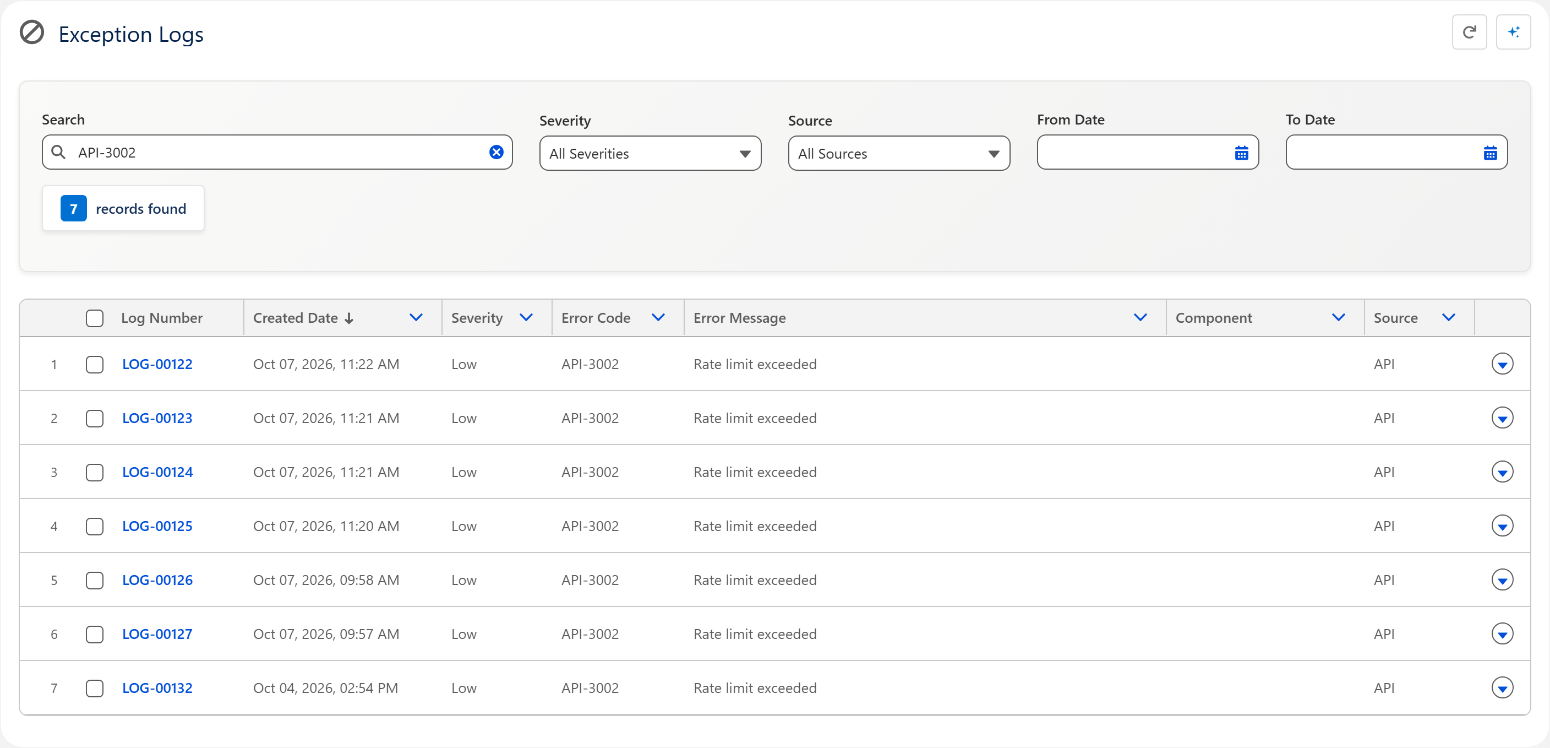
Refusals are logged as API-3004 at Low severity, which is recorded only when Exception Log Level is Debug.
A referrer is a hint, not proof. A script outside a browser can send any Referer it likes. This check stops casual reuse of your endpoint from other sites; CAPTCHA and the honeypot are what stop bots.
Guest User Permissions
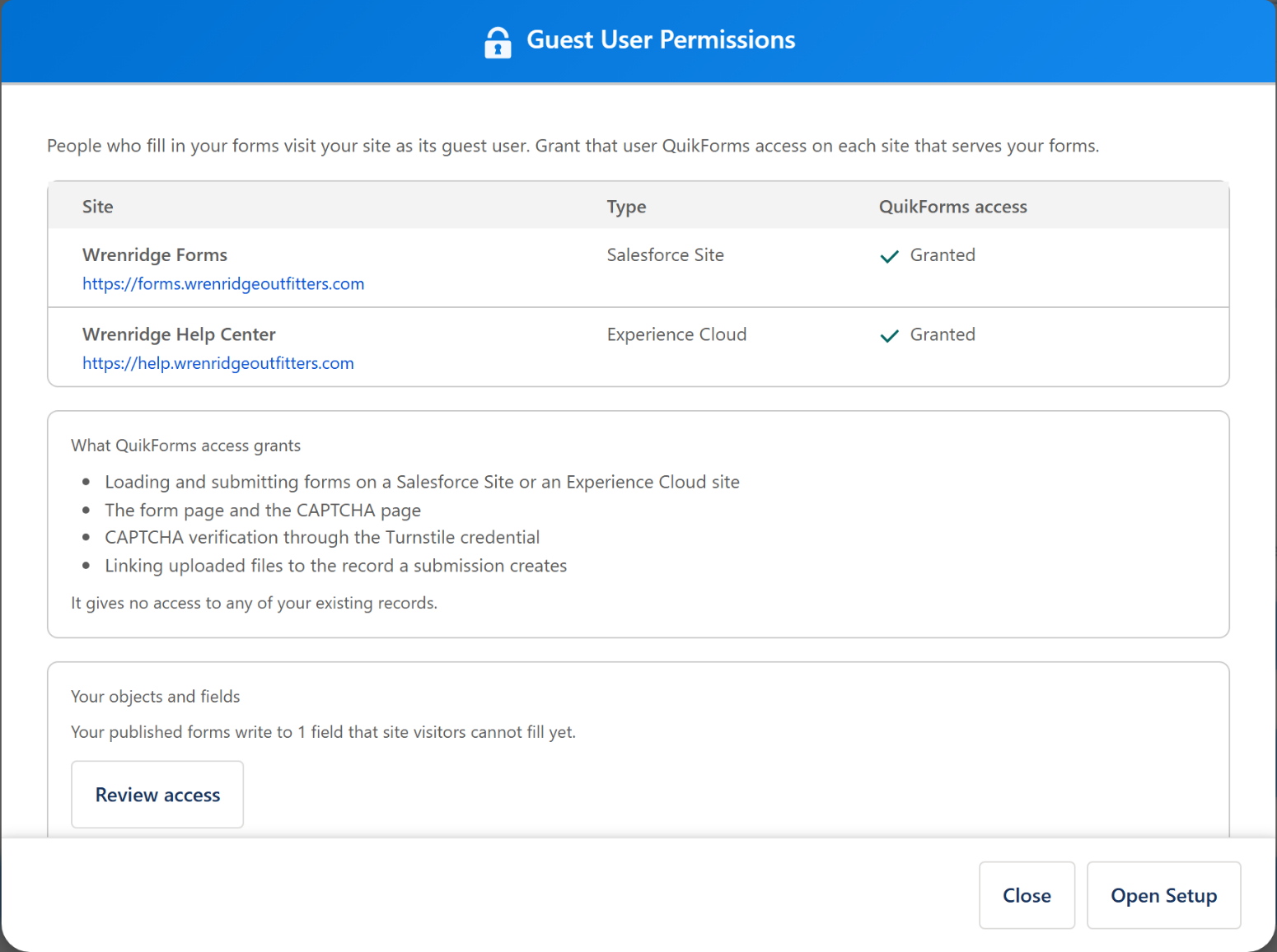
People who fill in a form on an Experience Cloud site or a Salesforce Site visit it as that site's guest user. Everything the guest user needs is granted from Setup Assistant → Setup Tasks → Guest User Permissions. The Setup Assistant opens from the QuikForms Setup Assistant item in the QuikForms app's utility bar, and its Setup Tasks need the Customize Application permission.
Permission Model
QuikForms follows a strict least-privilege permission model. This is everything a site's guest user is given:
What
Access
Purpose
QuikForms Guest permission set
QuikForms' form-loading and submission classes, the form page and the CAPTCHA page, the Turnstile credential, and one field on uploaded files. No object access.
Loading and submitting forms, verifying CAPTCHA, linking uploaded files to the new record
QuikForms' own objects (forms, versions, fields)
None
QuikForms reads the published form for the visitor. A guest cannot query form definitions.
Objects your forms write to (Case, Lead, and so on)
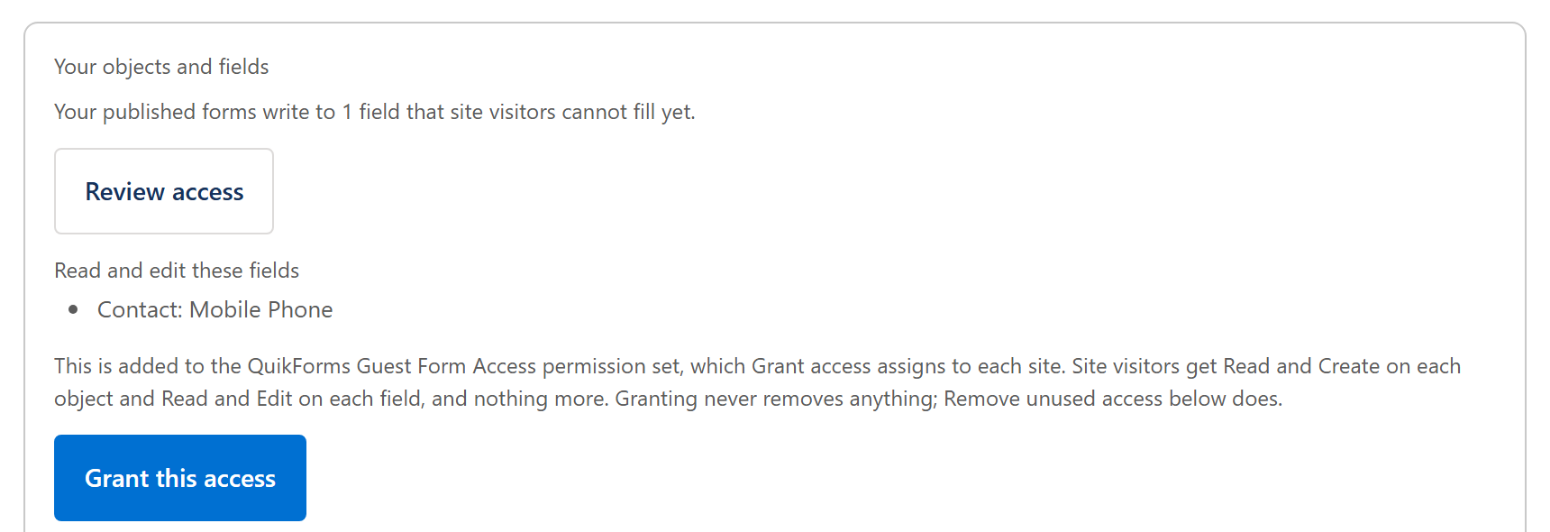
Read and Create on the object; Read and Edit on each mapped field
Creating the submission. Granted into the QuikForms Guest Form Access permission set.
Survey__c
None
A survey link's token is the visitor's authorization. QuikForms loads and saves the one survey the token names, and a form field can never write the token, its expiry, the submitted flag, or the record the survey belongs to.
Security Critical: Salesforce requires Read alongside Create, so the guest user holds Read on the objects your forms write to. What keeps one visitor from seeing other people's submissions is record sharing: a site guest user sees only records a guest user sharing rule shares with it. Do not create guest user sharing rules on objects your forms write to.
Granting Access to a Site
Grant access on every site that serves forms, whichever renderer it uses.
In the QuikForms app, open QuikForms Setup Assistant from the utility bar.
On Setup Tasks, open Guest User Permissions. It lists every site in the org, with its type and its QuikForms access.
Click Grant access beside each site that serves forms. This assigns the QuikForms Guest permission set, and the QuikForms Guest Form Access set, to that site's guest user.
Granting access gives no access to any of your existing records. Open Setup in the same window opens the Sites page in Salesforce Setup.
Your Objects and Fields
The guest user also needs permission to create the records your forms write, and to fill each mapped field. A field it cannot fill is not skipped quietly: the submission is refused with the form's generic error, and FORM-4012 in QuikForms Error Manager names the field.
The Your objects and fields box in the same window works this out for you from your published forms:
When something is missing, the box says so. Click Review access to see the objects under Create records of and the fields under Fill these fields.
Click Grant this access. It is added to the QuikForms Guest Form Access permission set, which Grant access assigns to each site.
Anything Salesforce does not allow a guest user to have is listed under Not granted, with the reason.
Come back after publishing a form that writes to new objects or fields. Nothing is ever removed from QuikForms Guest Form Access, so you can also add to it yourself, and QuikForms will not undo your changes.
Testing: After configuring permissions, always test form submissions as a guest user. Use a private browsing window, or log out, and submit the live form.
External Credential Access
For Turnstile CAPTCHA verification to work, the guest user must have access to the Turnstile External Credential principal. The QuikForms Guest permission set includes it, so Grant access in Guest User Permissions covers it.
A plugin that calls your own external system through a Named Credential needs the same for its External Credential, and QuikForms Guest does not include it. Create a permission set of your own with External Credential Principal Access to that credential's principal, and assign it to the guest user of each site that serves the form.
Common Error: If every submission to a form with CAPTCHA on is refused as failing verification, and QuikForms Error Manager shows APEX-9998, check that the site's guest user has been granted access in Guest User Permissions.
Rate Limiting & IP Blocking
Forms on Experience Cloud sites and Salesforce Sites are rate limited per visitor IP address, using Salesforce Platform Cache, to slow down anyone submitting over and over. CAPTCHA and the honeypot protect every form alongside it.
How Rate Limiting Works
Only requests that create a record or reach an external system count toward the limit:
Form and survey submissions
A chat form's fallback record, created when no agent is available
Plugin callouts
Loading the form, analytics, file uploads, and chat status checks do not count, so a visitor uploading a large file in many pieces is never throttled for it.
For each counted request, QuikForms:
Takes the visitor's IP address: from the request on a Salesforce Sites form, or from the form's visitor ticket on an Experience Cloud site (below)
Adds one to that address's counter for the current minute in Platform Cache. Each new minute starts a new count.
Refuses the request once the counter passes the limit, which is 20 per minute unless you change it
Answers a refused request with success: false and the message "Too many requests. Please try again later." On the REST endpoint the HTTP status is still 200, so check success in the response body, not the status.
An Experience Cloud request reaches Salesforce without the visitor's address, so an Experience Cloud form fetches a short-lived signed ticket from a page on its own site, which carries the visitor's address and page to the server. Requests that arrive without a valid ticket are still counted, all in one shared allowance, so leaving the ticket out does not avoid the limit. They are logged as API-3012 at Low severity.
One address can be many people. Visitors behind one office network, school, or mobile carrier often share a public IP address, and they share one limit. If a form is filled in by many people at one site at once, such as a kiosk or a training room, raise the limit.
Rate limiting needs Platform Cache. The counters live in the QuikFormsCache partition. Without cache capacity allocated to it, nothing is throttled; see Monitoring & Logging for how that shows up. Setup Assistant → Setup Tasks → Platform Cache Setup checks the partition and opens Setup so you can allocate 1 MB to it.
Configure Rate Limits
The limit is one org-wide setting.
Configuration Steps:
In the QuikForms app, open QuikForms Setup Assistant from the utility bar
Open the Settings tab, then the Security section
Set Rate Limit (per minute), the number of counted requests allowed per minute from one IP address
Click Save. The panel confirms once the new value reads back, usually within a few seconds.
Choosing a value:
Situation
Rate Limit
Rationale
Most forms
20 (the default)
Far above what one person submits in a minute, low enough to slow a script
Forms one person submits once
5 to 10
Tighter, when visitors rarely share an address
Plugins that call out as the visitor types
40 or more
Every callout counts, so a lookup on each field adds up
Many visitors behind one network
50 or more
A shared address carries everyone's submissions at once
The value does not change cache use. Each visitor address takes one small counter for about a minute, whatever the limit is set to.
Monitoring & Logging
Refusals are logged in QuikForms Error Manager, but at low severities, so the default Exception Log Level (Error) records none of them. Raise it in Setup Assistant → Settings → Data & Logging while you investigate, and set it back afterwards.
Rate limiting could not run for a request, so it was let through
Medium
Warning, Info, or Debug
API-3012
An Experience Cloud request arrived without a valid visitor ticket. It is counted in the shared allowance and refused by Valid Referrers when that is set
Low
Debug
The entries deliberately leave out the visitor's IP address and the request body, so a flood of refusals cannot fill your org's storage with them.
View Rate Limit Exceptions:
Set Exception Log Level to Debug
Open the QuikForms Error Manager tab
Filter by error code API-3002
Look at when the refusals happen and how many there are
Rate limiting fails open
If the cache partition has no capacity, a Salesforce Sites request carries no client IP, or a cache operation throws, QuikForms lets the submission through rather than refusing it, because refusing every visitor is a worse outcome than briefly not throttling. Each of those cases writes an API-3005 entry. CAPTCHA, the honeypot, and referrer validation keep working.
So filter on API-3005 as well as API-3002. A run of API-3005 means the control is not running at all, which the API-3002 filter alone would never show you.
Key Indicators of Abuse:
A steady run of API-3002 refusals over many minutes
Refusals outside the hours your visitors normally use the form
Alerting: Rate limit refusals publish no platform event. For real-time alerts on submissions that fail validation, subscribe to QuikForms_Validation_Failed__e (Professional).
IP Blocking Strategies
QuikForms has no built-in list of blocked addresses. There are two ways to add one:
Method 1: A submission handler pluginProfessional
A submission handler sees the visitor's address as context.ipAddress, on Experience Cloud and Salesforce Sites forms alike, and can refuse the submission before anything is saved. A handler runs once per submission, which is why it suits this better than a validator, which runs once per field.
Example IP Block Plugin
global class IPBlockerPlugin implements quikforms.IQuikFormsPlugin, quikforms.IQuikFormsSubmissionHandler {

    // Loaded from Configuration_Schema__c: {"blockedIps": ["203.0.113.7"]}
    private Set<String> blockedIps = new Set<String>();

    global quikforms.QuikFormsPluginInfo getPluginInfo() {
        quikforms.QuikFormsPluginInfo info = new quikforms.QuikFormsPluginInfo();
        info.name = 'IP Blocker';
        info.version = '1.0.0';
        info.supportedHooks.add('onBeforeSubmit');
        return info;
    }

    global void initialize(Map<String, Object> configuration) {
        if (configuration != null && configuration.get('blockedIps') instanceof List<Object>) {
            for (Object ip : (List<Object>) configuration.get('blockedIps')) {
                blockedIps.add(String.valueOf(ip));
            }
        }
    }

    global Boolean isReady() {
        return true;
    }

    global quikforms.QuikFormsSubmissionResult onBeforeSubmit(quikforms.QuikFormsSubmissionContext context) {
        // Null when the address could not be determined: nothing to check.
        if (context.ipAddress != null && blockedIps.contains(context.ipAddress)) {
            // failure() adds the message AND stops the submission.
            return quikforms.QuikFormsSubmissionResult.failure(
                'We could not accept this submission. Please contact us directly.');
        }
        return null; // no objection
    }

    global quikforms.QuikFormsSubmissionResult onAfterSubmit(quikforms.QuikFormsSubmissionContext context) {
        return null;
    }
}
Register it with Plugin_Type__c set to SubmissionHandler and Error_Behavior__c set to Warn, so a mistake in the plugin cannot stop every submission. The visitor sees your message as a form-level error.
Method 2: Cloudflare or another CDN
If you serve your site on a custom domain through Cloudflare or a similar CDN:
Configure firewall rules to block malicious IPs
Enable bot protection and challenge pages
Use rate limiting at the CDN level before traffic reaches Salesforce
This covers Experience Cloud sites as well as Salesforce Sites.
Best Practice: Combine rate limiting with Cloudflare Turnstile. Rate limiting stops simple spam scripts, while Turnstile and honeypot protection prevent sophisticated bots.
Data Validation & XSS Prevention
QuikForms implements multiple layers of input validation and output encoding to prevent Cross-Site Scripting (XSS) and other injection attacks.
Input Validation
A value is checked at three levels before it is saved:
Validation Layers:
In the browser: required fields, the field's Validation Regex, and plugin checks run as the visitor fills the form in, for instant feedback. Anyone can bypass these, so they are convenience, not protection.
On the server: the same required and regex checks run again, with blocking value messages, validator plugins, and Flow onValidate hooks. See How server validation runs. These cannot be bypassed.
By Salesforce: when the record is saved, Salesforce applies its own rules: field types such as email and number, maximum lengths, required fields, and your validation rules. A value that breaks one fails the save.
A pattern is a search, as in JavaScript: without ^ and $ it passes any value that contains a match. Patterns must use syntax browsers understand, so constructs that only Java accepts, such as \p{Alpha} or (?i), are refused when the field is saved.
Field-Level Validation Configuration:
In QuikField Manager, open a field in the field editor
Go to the Validation & Behavior tab
Enter a Validation Regex pattern
Save the field
There is no per-field error message. When a value fails, the visitor sees the form's Invalid Value Error, set in the form builder's Labels tab under Error Messages, with the field's label in place of {0}.
Custom Validators: Implement quikforms.IQuikFormsFieldValidator for business logic a regex cannot express. See the Validator recipe.
Output Encoding & Escaping
Salesforce escapes output in Visualforce and Lightning Web Components by default. QuikForms renders what visitors type as text, never as HTML.
Automatic Escaping:
Context
Mechanism
Protection
Lightning Web Components
{property} bindings
Rendered as text, never as markup
Visualforce
{! expression } (escaped by default)
HTML entities encoded
Apex Strings
String.escapeSingleQuotes()
SOQL injection prevention
HTML Output
HTMLENCODE() function
Converts < > & " ' to entities
Unsafe Contexts: Never pass user input to escape="false" in Visualforce or to innerHTML in JavaScript. These bypass Salesforce's automatic protection. A plugin that builds HTML from a visitor's value must escape it first.
customHTML Field Security
A customHTML field shows static content an admin wrote: a disclaimer, a heading, or a logo. It has no merge syntax, so nothing a visitor types, and nothing from the page's URL, ever reaches it.
Custom HTML is sanitised before it is shown. On both renderers, QuikForms cleans admin-authored HTML before putting it on the page: custom HTML fields, the form's header and footer HTML, and HTML in tooltips. Cleaning does four things:
Removes <script>, <iframe>, <object>, <embed>, <base>, and <form> elements
Strips every on* event handler attribute, such as onclick and onerror
Removes javascript:, vbscript:, and data:text/html URLs
Drops <meta http-equiv="refresh"> redirects
Markup and styling survive; behavior does not. So custom HTML cannot run a script or attach a click handler, even one an admin wrote on purpose. Anything interactive belongs in a plugin.
Security Rules for customHTML:
Admin-Only Creation: Only administrators should create customHTML fields
Static Content Only: Use it for logos, disclaimers, and formatting
Review Before Publishing: Check links and images point where you expect before publishing a form
Safe customHTML Examples:
Safe: Static Disclaimer
<div class="disclaimer">
    <p>
        <strong>Privacy Notice:</strong> Your information will be handled in
        accordance with our <a href="/privacy">Privacy Policy</a>.
    </p>
</div>
Removed when the form renders
<!-- Written in a custom HTML field -->
<img src="banner.png" onerror="alert('XSS')">
<a href="javascript:alert('XSS')">Click here</a>
<script>alert('XSS')</script>

<!-- What the visitor's browser receives -->
<img src="banner.png">
<a>Click here</a>
SOQL Injection Prevention
QuikForms uses bind variables in its queries, and checks object and field names against your org's schema before using them in a dynamic query. Plugin code should do the same.
Safe Query Patterns:
Safe: Bind Variables
// Safe - uses a bind variable
String email = String.valueOf(ctx.fieldValue);
List<Contact> matches = [
    SELECT Id
    FROM Contact
    WHERE Email = :email
    LIMIT 1
];

// Safe - uses escapeSingleQuotes in a dynamic query
String searchTerm = String.escapeSingleQuotes(userInput);
String query = 'SELECT Id FROM Case WHERE Subject LIKE \'%' + searchTerm + '%\'';
List<Case> results = Database.query(query);
Unsafe: String Concatenation (DO NOT USE)
// DANGEROUS - NEVER DO THIS
String query = 'SELECT Id FROM Case WHERE Subject = \'' + userInput + '\'';
List<Case> results = Database.query(query);

// If userInput = "test' OR '1'='1"
// Query becomes: SELECT Id FROM Case WHERE Subject = 'test' OR '1'='1'
// Returns all records!
For plugin authors: A value from fieldValue, allFieldValues, or a callout's request.body came from a visitor. Bind it or escape it before it goes anywhere near a query.
Plugin Security Framework
QuikForms checks a class before it creates it as a plugin, and the global quikforms.QuikFormsPluginSecurity class offers helper methods your plugin can call.
A plugin is not sandboxed. The checks below decide which class may be registered as a plugin. They do not limit what the plugin's code can do once it runs: its Apex runs with the same rights as any Apex in your org, inside the visitor's submission, and its JavaScript runs on your public form. Review plugin code, including code you download, as you would any code you deploy.
Plugin Class Validation
Before creating a plugin from Apex_Class_Name__c, QuikForms checks the class.
Validation Checks:
Blocked name prefixes: the class name must not start with any prefix in the table below, compared without regard to case
Blocked names: the class name, after any namespace, must not be one of a short list of system class names
Class Existence: the class must exist. Your org's own classes are found first, then the name as given, so namespace.ClassName works for a class in another package.
Interface Implementation: QuikForms creates the class with its no-argument constructor and refuses it unless it implements IQuikFormsPlugin. A constructor that throws fails this check.
A class that fails any check is skipped, and its plugin does nothing.
System class names. These have no dot, so they also refuse your own class if its name starts the same way.
HttpAddressLookup, QueueableSync
Blocked class names. Separately from the prefixes above, a plugin class may not itself be named any of these, matched on the name after the last dot:
Type, JSON, Blob, Crypto, EncodingUtil, UserInfo
Only the class name is checked. These rules apply to the name in Apex_Class_Name__c. Your plugin's code may still use Http, Database, JSON, and the rest; the Integration recipe above does.
Configuration Sanitization
Plugin configuration is admin-entered JSON. QuikForms parses it and hands it over as it is: Configuration_Schema__c to initialize() and to formData.pluginConfig, and a field's Plugin Configuration to field.pluginConfiguration and the validator context. It does not remove keys. JSON that does not parse becomes an empty map in Apex and {} in JavaScript, so a plugin always receives something it can read.
If your plugin copies configuration into other objects, quikforms.QuikFormsPluginSecurity.sanitizeConfiguration() parses a JSON string and removes these top-level keys, which JavaScript treats specially:
__proto__
constructor
prototype
__defineGetter__
__defineSetter__
Configuration Sanitization
// Returns an empty map when the JSON is blank or does not parse.
Map<String, Object> settings =
    quikforms.QuikFormsPluginSecurity.sanitizeConfiguration(configJson);
In JavaScript, never merge configuration recursively into shared objects. Copy the keys you expect onto a fresh object, as Object.assign(defaults, parsed) does in the recipes, and treat every value as possibly missing or the wrong type.
HTML Sanitization Methods
quikforms.QuikFormsPluginSecurity provides Apex methods for escaping HTML and checking URLs. They are for a plugin's Apex; a plugin's JavaScript does its own escaping, as in the template below.
Available Methods:
Method
Purpose
Use Case
escapeHtml(String)
Escape & < > " ' / as HTML entities
Rendering user input as plain text
sanitizeHtml(String)
Remove dangerous HTML tags and attributes with pattern matching
Allowing limited HTML markup
isValidUrl(String)
Validate URL is safe (https only; http is refused)
Validating redirect URLs, external links
isValidStaticResource(String)
Validate a Static Resource name: letters, digits, and underscores only
Removes the text javascript: wherever it appears, and data: URLs from src, href, and other URL attributes (the word "data:" in ordinary text is kept)
Plugin Development: Prefer escapeHtml() whenever a value only needs to be shown. It is exact; sanitizeHtml() works by pattern matching, so use it only when you must keep some markup.
Plugin Security Best Practices
Follow these guidelines when developing custom QuikForms plugins:
1. Input Validation
Read configuration in initialize(), and check every key you use exists and has the type you expect
Fail safely: fall back to sensible defaults if configuration is missing or invalid
Treat fieldValue, fieldValues, and a callout's request.body as untrusted: a visitor wrote them
2. Output Encoding
Escape every visitor-supplied value before it becomes HTML. In JavaScript, prefer textContent over innerHTML
Validate URLs with isValidUrl() before rendering links
3. Least Privilege
Document the permissions your plugin needs, including any External Credential the site guest user must reach
Use without sharing only when absolutely required
Never query sensitive objects (User, Profile, PermissionSet) without business justification
4. Error Handling
Catch the exceptions you expect and return a clear result: QuikFormsValidationResult.failure(), QuikFormsSubmissionResult.failure(), or QuikFormsCalloutResponse.failure()
Let QuikForms record the unexpected: an exception that escapes your plugin is logged as PLUGIN-6002 and handled by Error_Behavior__c
Never put stack traces or internal errors in a message a visitor sees
5. Testing
Test plugins with malicious input (XSS payloads, SOQL injection attempts)
Test on the live site as a guest, not only in the builder's preview, which runs as you
Test the rate limit and timeout paths
Secure Plugin Template
window.initSecureExample = function (QuikFormsPlugins) {
'use strict';
// Escape anything a visitor typed before it becomes markup.
function escapeHtml(value) {
return String(value == null ? '' : value)
.replace(/&/g, '&')
.replace(/</g, '<')
.replace(/>/g, '>')
.replace(/"/g, '"')
.replace(/'/g, ''');
}
QuikFormsPlugins.register('secure-example', {
name: 'secure-example',
hooks: {
onFieldBlur: function (context) {
// getFieldContainer works on both renderers; document does not.
var container = QuikFormsPlugins.getFieldContainer(context.fieldId);
if (!container || !context.value) return;
var note = container.querySelector('.secure-example-note');
if (!note) {
note = document.createElement('div');
note.className = 'secure-example-note';
container.appendChild(note);
}
// Building HTML: escape the visitor's value first. (Setting
// textContent instead never interprets markup at all.)
note.innerHTML = 'You entered: <strong>' +
escapeHtml(context.value) + '</strong>';
}
}
});
};
Security Review: Before deploying plugins to production, conduct a security review or peer code review focused on input validation, output encoding, and permission handling.
Security Checklist
Use this checklist to ensure your QuikForms deployment is secure:
Deployment Readiness: Complete all checklist items before publishing forms to production.
Turnstile & Bot Protection Configuration
□ Obtained Site Key and Secret Key from Cloudflare Turnstile Dashboard
□ Saved both keys in Setup Assistant → Bot Protection Setup, and Cloudflare accepted the secret key
□ Replaced Cloudflare's test keys, if you used them, with your real keys
□ Granted access in Setup Assistant → Guest User Permissions for every site that serves forms
□ Tested Turnstile widget loads on forms
□ Verified form submissions are validated by Turnstile
□ Confirmed honeypot protection is active (enabled by default)
Guest User Permissions
□ Clicked Grant access in Setup Assistant → Guest User Permissions for every site that serves forms
□ Granted the objects and fields your published forms write to, with Review access and Grant this access
□ Checked no guest user sharing rule shares records of the objects your forms write to
□ Tested form submission as a guest user (private browsing window)